

User guide
How Sudanna works, step by step
A complete walkthrough of every real feature on Sudanna — written and captured directly from the live platform, not a wishlist.
Chapter 1
Getting started
You don't need an account to browse Sudanna at all — every section is open to read. You only need one to message someone, buy a ticket, save a search, or post something yourself.
-
1
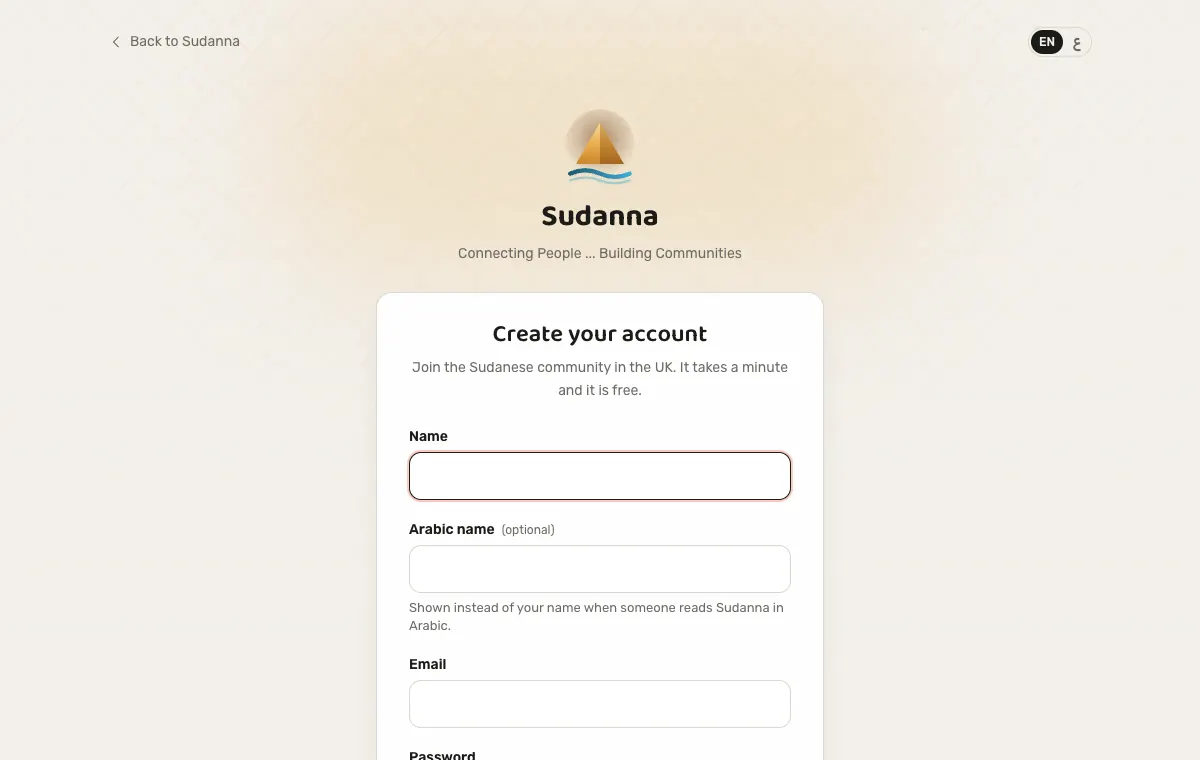
Open the registration form
From any page, use Register in the account menu, or go straight to /register. Fill in your name, an optional Arabic name, email, and password.
-
2
Verify your email — when you're ready to post
You're logged in the moment you register — no need to wait for anything to start browsing. A verification email lands separately, and you'll only need to click it before you can publish something of your own: a listing, a job, a forum question, a club. Browsing, messaging, and buying tickets never need it.
-
3
Add a profile photo (optional)
Right after registering, you'll get a one-time invitation to add a photo. Skip it and you get a coloured letter instead. Change it any time later from My profile.
One account, many roles
There's no separate "seller account" or "job seeker account" to choose between. The same account can sell in the Market Place, apply for jobs, and organise an event — each role is granted automatically the first time you use it.
Chapter 2
Selling in the Market Place
For: Anyone with a product to sell — food, clothes, furniture, electronics, and more.
-
1
Market Place → "Sell something"
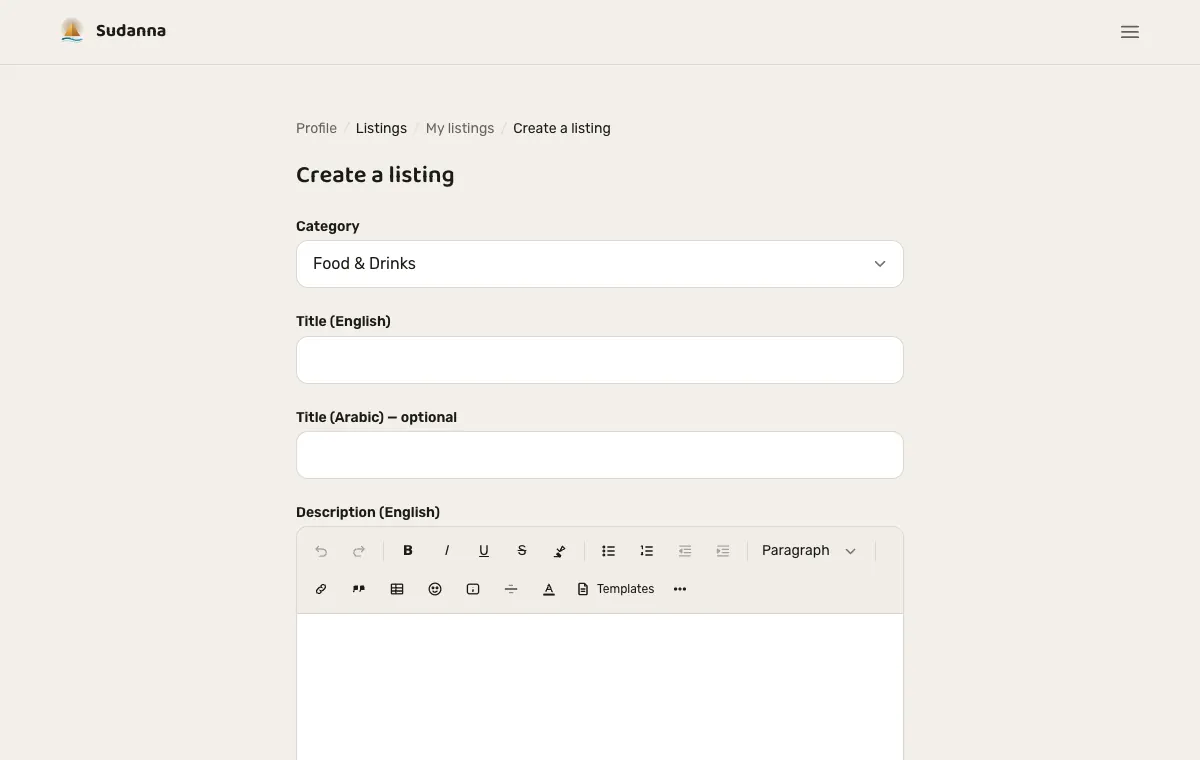
Every category has its own listing form, and a "My listings" page showing everything you've posted, with its current status.
-
2
Pick a category and a plan
Featured and Promoted buy extra visibility — higher placement and a badge — not extra features. There's no free tier in the Market Place.
-
3
Fill in the details
Title and description in English (Arabic optional), a price if you want one shown, and photos. Leave price blank and buyers see "Contact for price" instead.
-
4
Pay, unless it's covered
A paid plan sends you to Stripe Checkout. If your referral credit balance fully covers the price, that step is skipped entirely.
-
5
Wait for review
Every listing enters an admin review queue before anyone else can see it. You'll get an email the moment a decision is made either way.
-
6
Edit any time — it resubmits automatically
Approved and live, or rejected — either way, saving an edit always sends it back to Pending, even for a small wording fix.
Basic
£2.99
30 days
Featured
£5.99
30 days
Promoted
£9.99
30 days
Once you've sold something
Buyers can message you straight from your listing, and leave a star rating once they've bought from you. Your average rating only appears once you've collected 5 or more.
Chapter 3
Offering a service
For: Tradespeople, carers, tutors, caterers, henna artists, advisers — anyone offering their skills rather than a product.
-
1
Services Hub → "Offer a service"
Your listing is free and permanent: it never expires and costs nothing. Paying is only ever about being seen first, and you can start or stop whenever you like.
-
2
Fill in the details
Title and description (English, and Arabic if you can), then the cities you cover: pick as many as you need, or tick "UK nationwide" to cover every city at once. Phone, website, map link, social links, qualifications and photos are optional.
-
3
Wait for review
Every listing is checked by the team before anyone else sees it, and you get an email the moment it is decided. Editing a live listing sends it back for a quick check.
-
4
Promote it by the day, when you want to
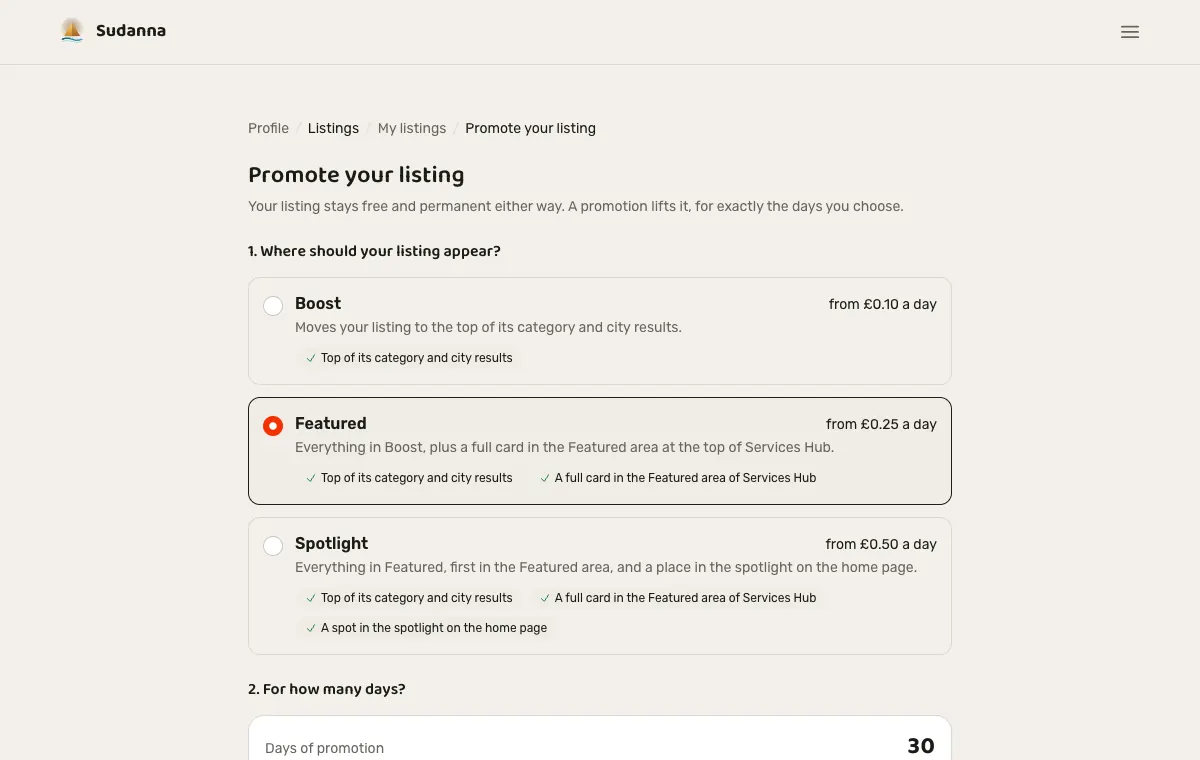
Open My listings → Promote. Choose where it should appear: Boost (top of its category and city results), Featured (a full card in the Featured area of Services Hub) or Spotlight (also a place on the home page). Then slide to the number of days, from 7 to 90, or type a budget and let the page fit the days to it. You see the total before you pay, including the longer-stay discounts (10%, 15% and 20% from 30, 60 and 90 days) and any busier-season prices. Pay by card on Stripe, or with your account credit if it covers it.
-
5
Afterwards, nothing changes
When the days end your listing simply goes back to being a normal free listing: still live, still permanent, just no longer lifted.
Free
£0
A permanent listing
Boost
from £0.10 a day
Top of category and city results
Featured
from £0.25 a day
Boost, plus the Featured area
Spotlight
from £0.50 a day
Featured, plus the home page
Prices are per day and are set by the Sudanna team, who can add busier-season prices; the page always shows the exact total before you pay.
Same rules from here
Messaging, reviews and followers work exactly as described for the Market Place in Chapter 2.
Chapter 4
Posting a job
For: Employers, from a one-off gig to a full-time role.
-
1
Jobs → "Post a job"
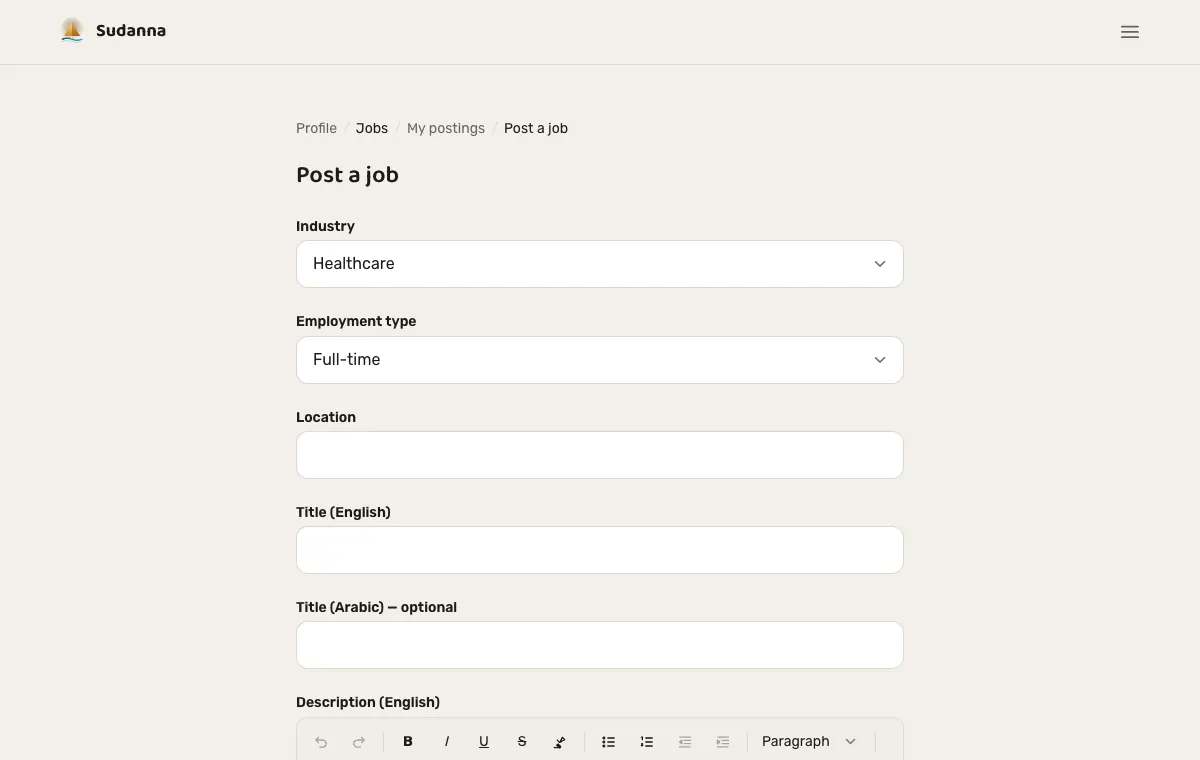
Choose an industry category and an employment type: Full-time, Part-time, Contract, Remote, or Volunteer.
-
2
Pick a plan
The Free tier is capped at one live posting at a time per employer.
-
3
Fill in the details, then publish
Title, description, and location, in English and (optionally) Arabic. Publishing needs a verified email, and goes to Pending review before it's visible to anyone.
-
4
Manage applicants as they arrive
Each posting has its own Applicants page, with every cover note and CV downloadable directly. Move anyone through Submitted, Reviewed, Shortlisted, or Rejected — the applicant is emailed the moment their status changes.
Free (1 listing)
£0
30 days
Standard
£19.99
30 days
Featured
£39.99
30 days
Chapter 5
Applying for a job
For: Job seekers — always completely free, whatever the employer paid.
-
1
Build your profile once
Under Jobs → My profile, add an optional headline and bio, and upload a CV (PDF, DOC or DOCX, up to 5MB). It's private and only ever shared once you apply.
-
2
Apply from any live posting
Open a posting, add an optional cover note, and hit Apply. You can only apply once per posting.
-
3
Track it on "My applications"
See every application's status in one place, and get an email whenever an employer moves you to Reviewed, Shortlisted, or Rejected.
Don't want to keep checking?
Jobs → Alerts lets you save a category, employment type, or keyword once, and get an email whenever a new posting matches.
Chapter 6
Running an event
For: Organisers of weddings, festivals, gatherings, concerts, bazaars, workshops, and more.
-
1
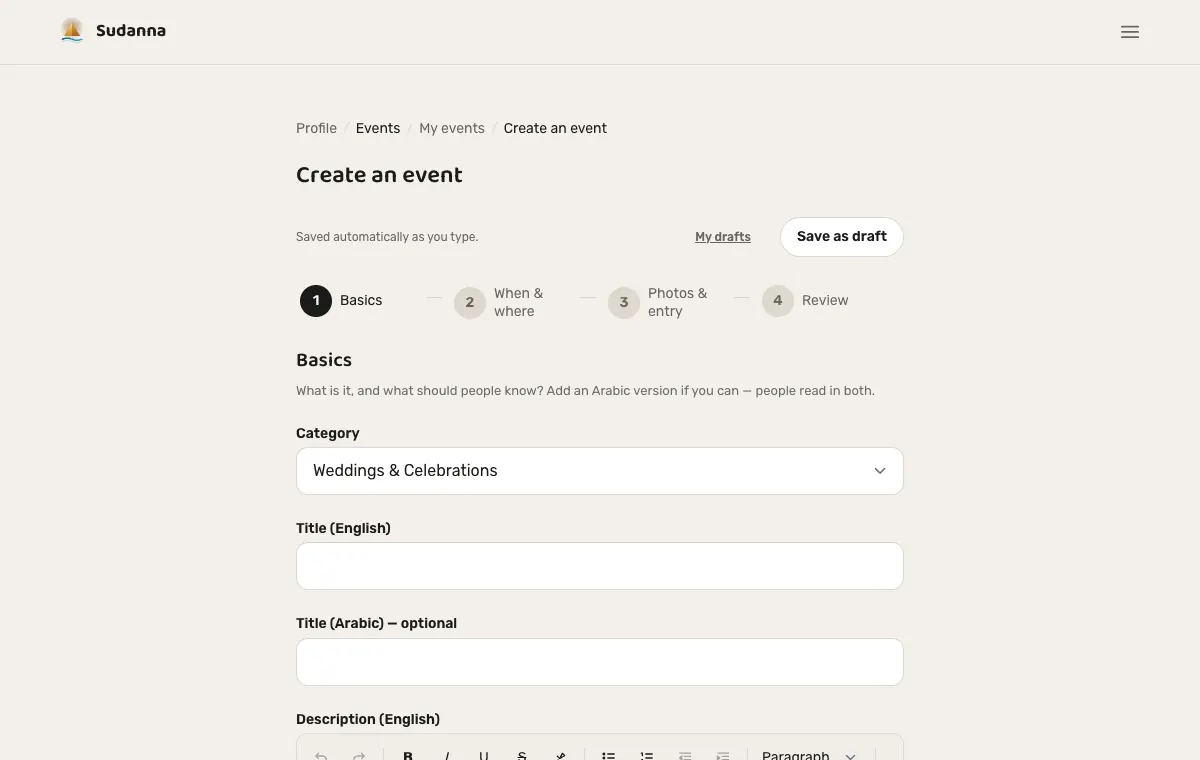
Create it in four short steps
Basics (category, title and description, in English and Arabic), When & where, Photos & entry, then Review. A bar at the top shows where you are, you can go back at any time, and what you type is saved automatically as a draft, so nothing is lost if you stop halfway.
-
2
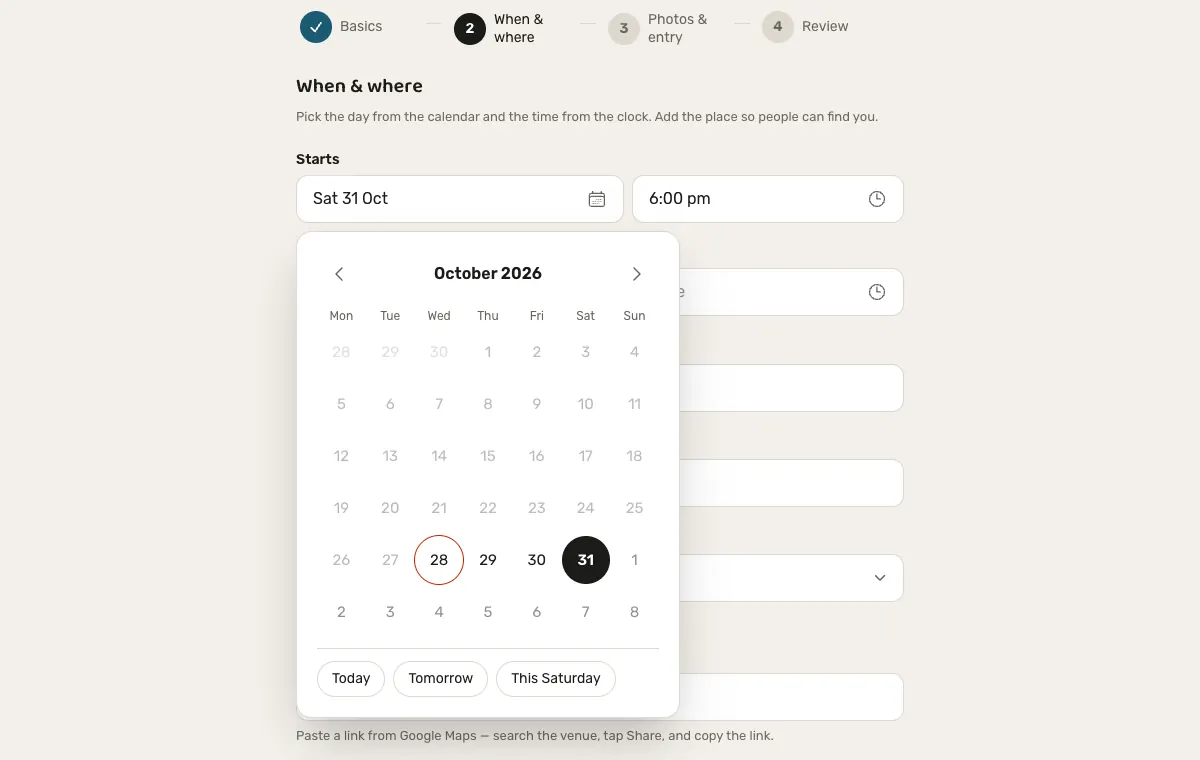
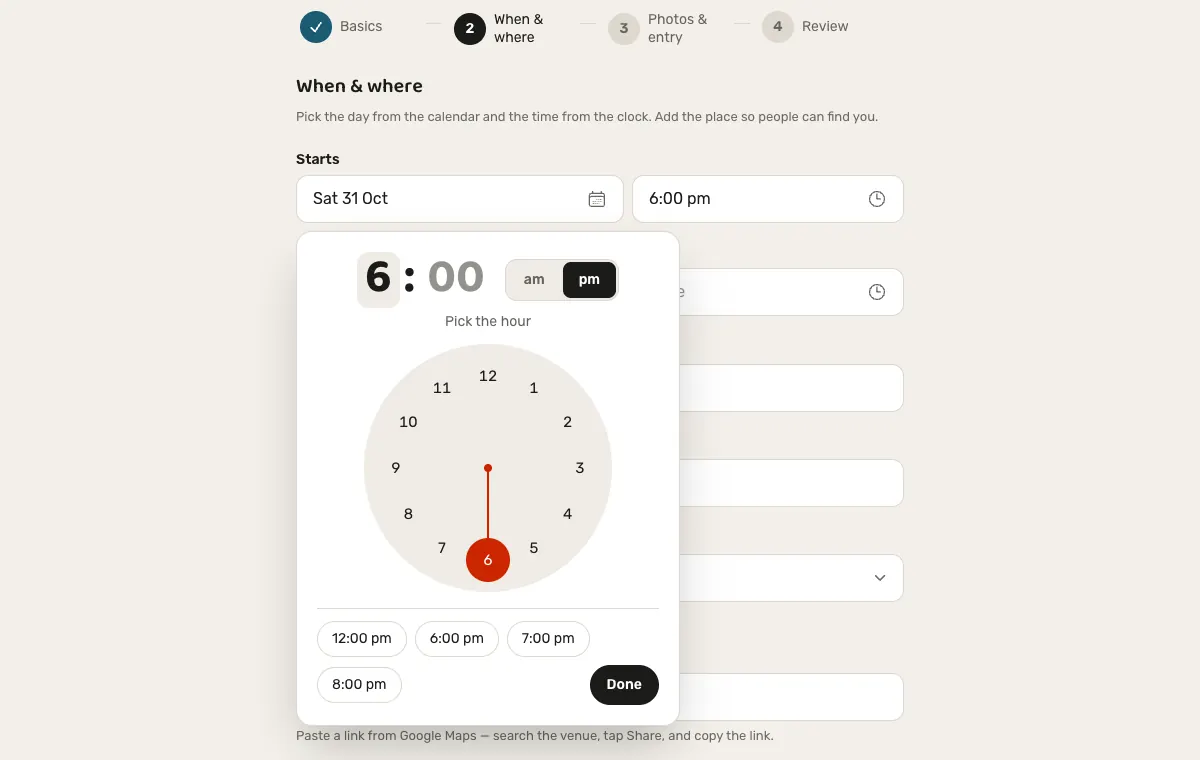
Pick the day from a calendar and the time from a clock
No typing dates. Tap the date to open a wide calendar (with quick choices for today, tomorrow and next Saturday) and the time to open a clock face with common start times. It works the same on every phone and keyboard, including an Arabic one, and a new event starts on a usual Saturday at 6 pm that you can change in two taps. The end time is optional.
-
3
Say where it is
A venue name, an address and a pasted Google Maps link. The place is shown on the event page with a map button for guests.
-
4
Add up to five photos and choose the main one
Drag in or choose photos, see them before they are sent, and pick which one is the cover. Guests see the main photo first, with the others in a gallery.
-
5
Choose how guests get in
Free entry, or tickets. A recognised Sudanese body can also keep an event for its own members only: it is left out of public lists and search and its members find it on the body's page.
-
6
Preview before you publish
See the event exactly as the public will — nothing goes live sight-unseen. Publishing needs a verified email and goes to Pending review.
-
7
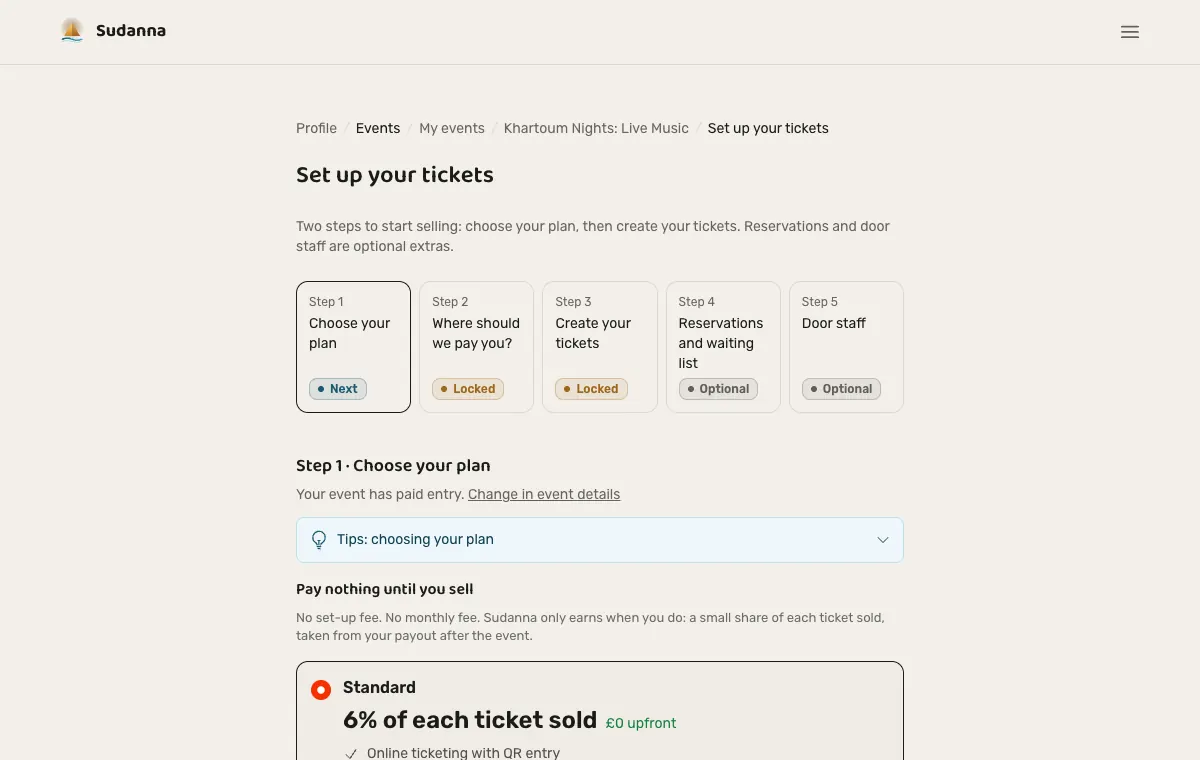
Choose your plan
On the Ticketing page, step 1 is your plan. A free-entry event is on the Free plan automatically: free tickets, nothing to pay, and nothing else to choose. For a paid event pick Standard (Sudanna keeps 6% of each ticket sold) or Pro (4%, with more analytics) and tick to agree. There is nothing to pay upfront: the share is taken from your payout after the event. Prefer to sell tickets yourself? Choose "No ticketing" and give a contact number instead.
-
8
Say where to pay you
On a paid event, step 2 asks where to send your ticket money: choose one of your saved UK bank accounts, or add one (a name you will recognise, the name on the account, the sort code and the account number). The dashes in the sort code go in by themselves as you type, and digits typed on an Arabic keyboard work too. We only pay UK accounts. Accounts are saved for your next event and you can edit or delete them from Payout accounts. Free-entry events never need one.
-
9
Create your tickets
Add as many ticket types as you like (General, VIP, Student…) with their own prices and numbers, and Sudanna handles the rest: Stripe Checkout, a QR code on every ticket, a guest lookup page, and a phone-camera scanner for the door. On a free-entry event you start with a free "Free entry" ticket that is always on sale, and every ticket is free and says "Free entry by sudanna.uk".
-
10
Let guests reserve and pay at the door
Choose how guests can book: online tickets only, reservations only, both from the start, or reservations that open by themselves once the tickets sell out. A reservation never guarantees entry, and every page and email says so. If your event is reservations-only you buy the places you need in bundles (10, 25, 50 or a number you choose), and free-entry events and your own guest list are never charged. The same settings are in the app under My events → Manage.
-
11
Keep a waiting list
Switch on the waiting list and, when a place frees up, the first person waiting is emailed and has two hours to take it. You can also offer a place to someone yourself, or remove people, from the Reservations page.
-
12
Run the door
Scan tickets and reservations with the same scanner. A ticket admits at once; a reservation asks you to take the payment and then admit, so you decide whether there is room. Add phone and walk-up bookings from the Reservations page, and download the list as a CSV.
Tip
Let ticket holders in first: they have paid. Reservations are for when there is room.
After it's live
Editing a published event sends it back to Pending review too — the same rule as every listing type in this guide.
Chapter 7
Starting a sports club
For: Anyone — no special role needed to begin. You become the club's captain.
-
1
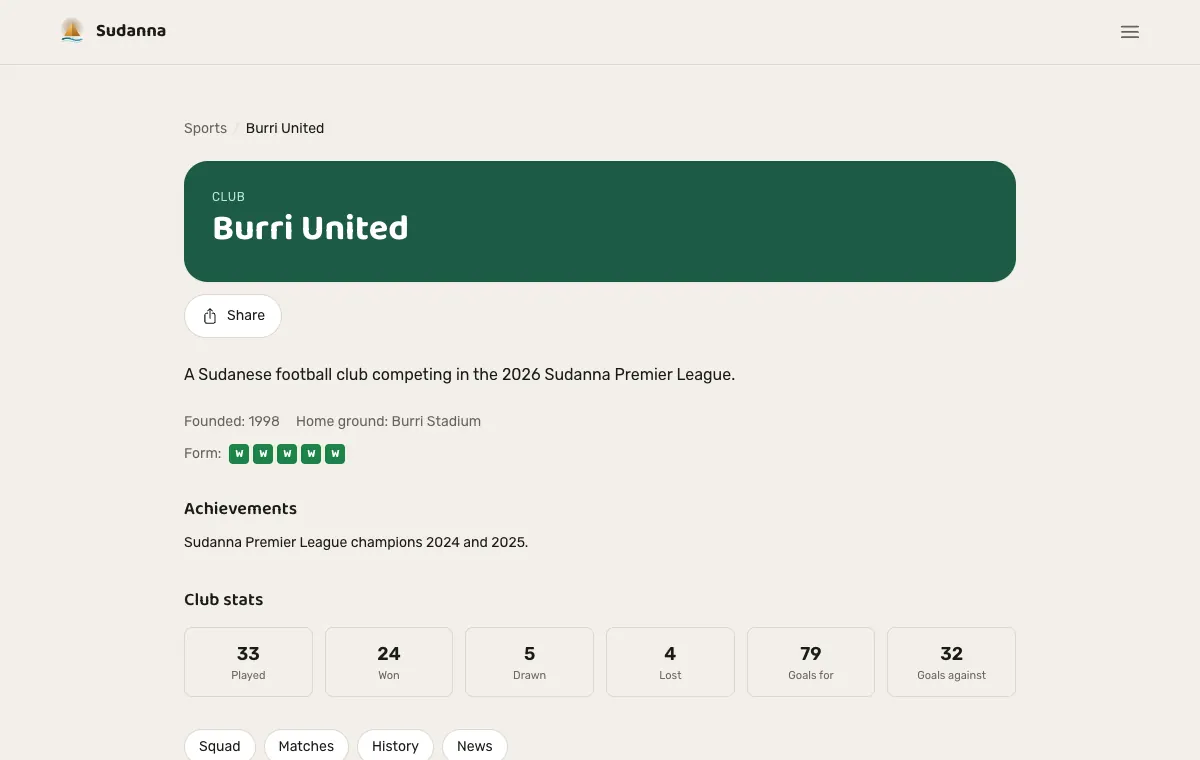
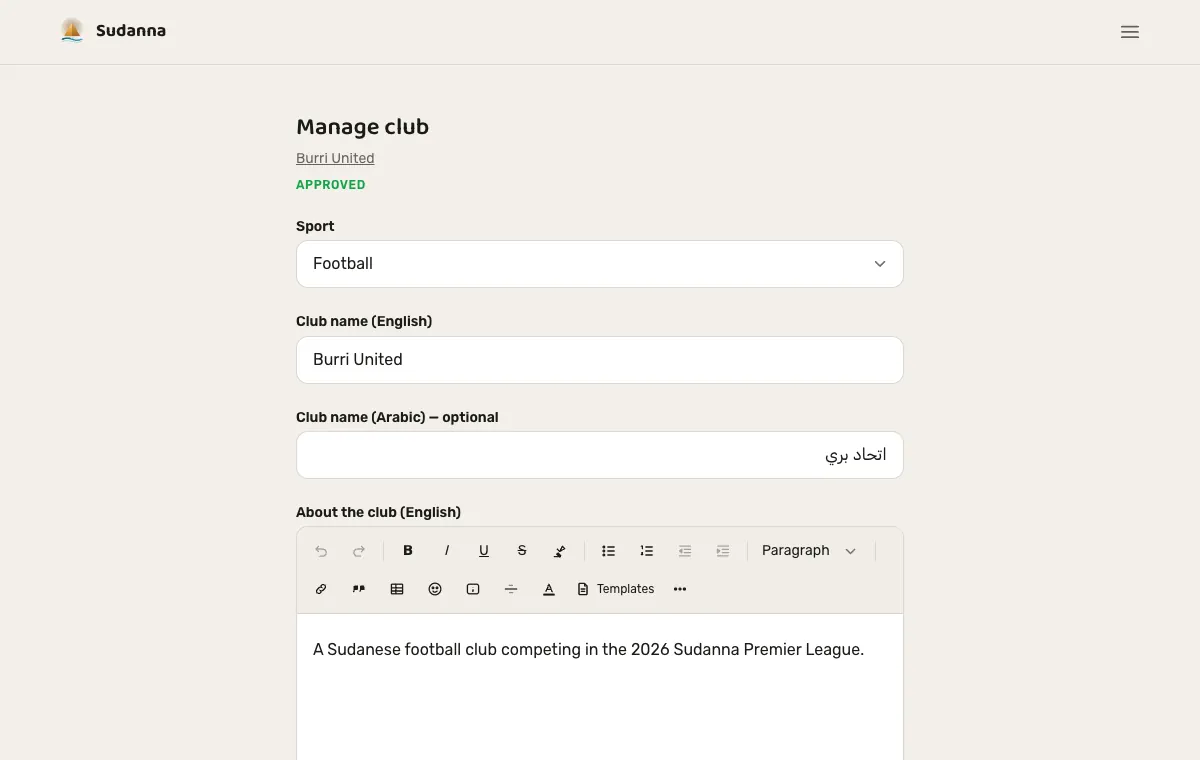
Create your club's page
Sport, name and description in English (and Arabic if you can), and optionally the year you were founded, your home ground and photos. A new club, and every change you make to it, is checked by the team before it shows, and you are emailed the decision.
-
2
Build your squad
Add each player with their name (and Arabic name), shirt number, position, date of birth, nationality, a short bio and a photo. Add their email and the player is linked to their Sudanna account if they have one. Players who have left can be marked as no longer playing so they stay out of line-ups but keep their history. Each player gets their own page with their appearances, goals and cards once matches are recorded.
-
3
Add honours and club news
Honours (league champions, a cup, a season) show in the club's history. Club news is live on your club page as soon as you publish it, in English and Arabic, with an optional photo.
-
4
Pick the line-up for a coming match
From your club page choose a match that has not been played: tick up to 11 starters and the substitutes from your active squad, and save. The line-up shows on the match page. Once the match has been played it can no longer be changed.
Fixtures and results
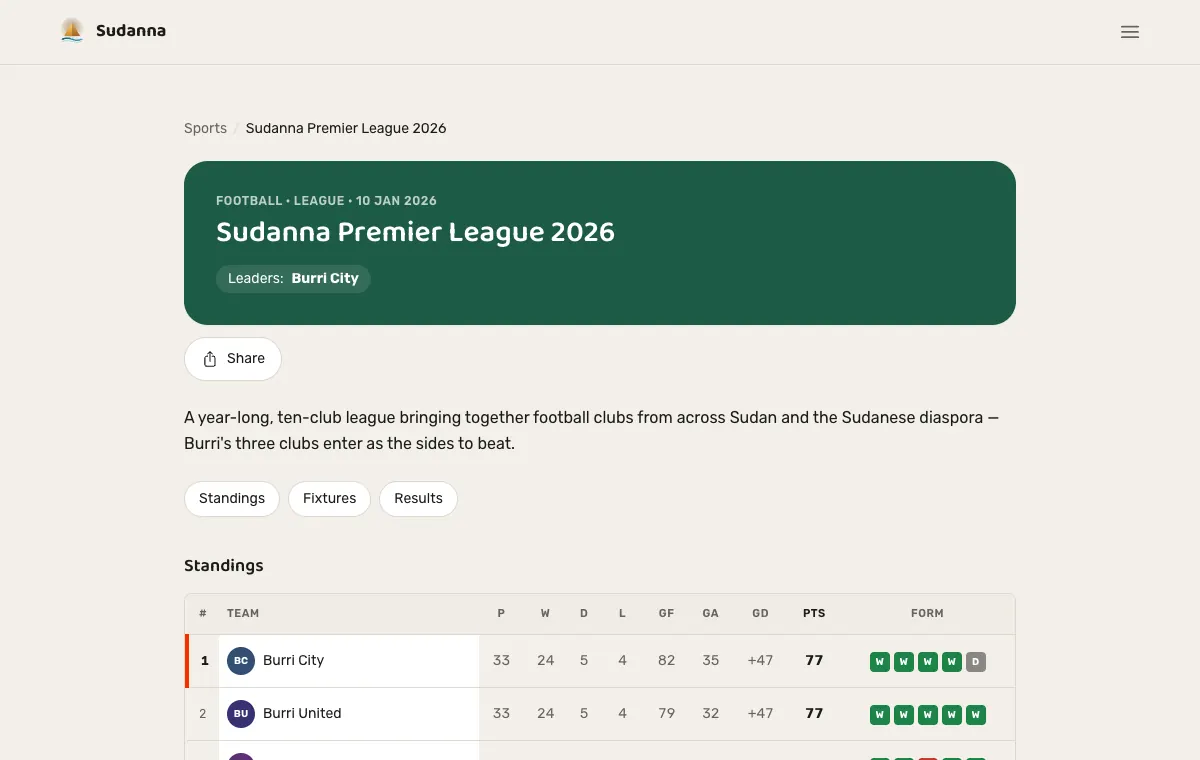
Tournaments, fixtures, results, goals and cards are entered by the Sudanna team, not by clubs, so scores can never be self-reported. They appear on your club page, in the tables and on each player's page once they are in.
Also in the apps
Starting and running a club, with the squad, honours, news and line-ups, is in the iPhone and Android apps too, under Profile → My clubs.
Chapter 8
Registering a Sudanese body
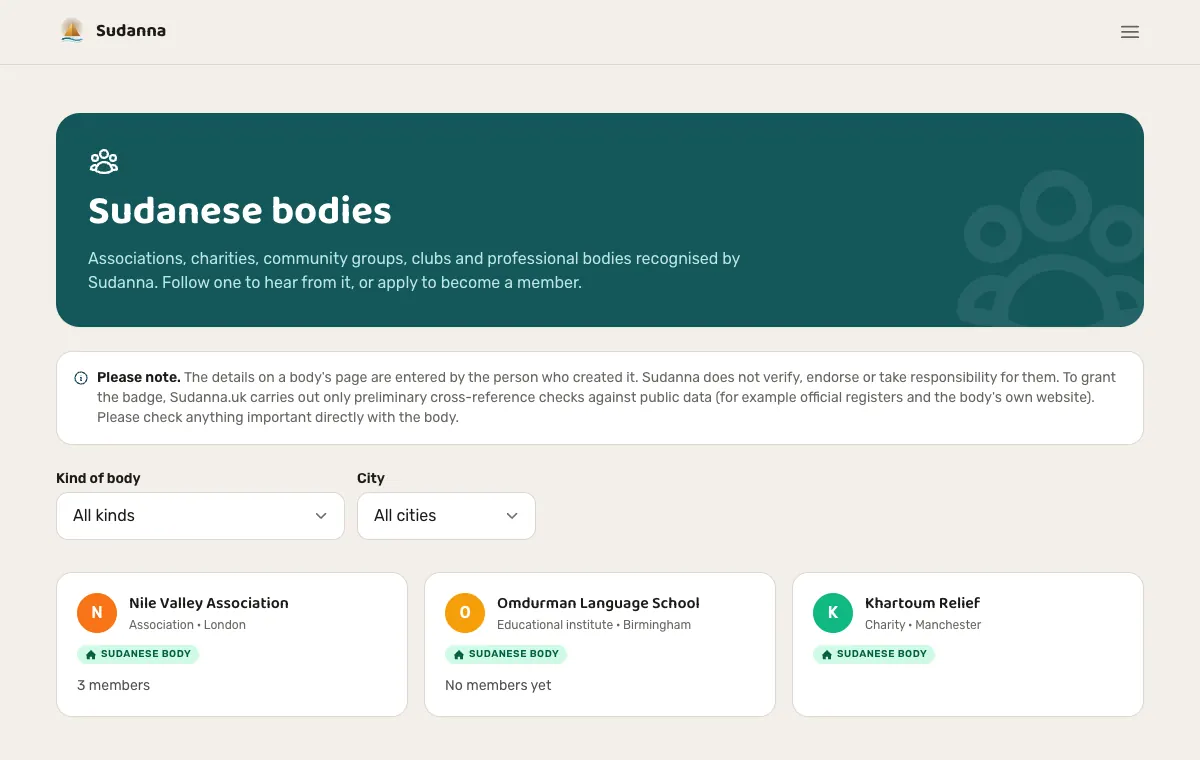
A recognised body gets its own public page with a badge, a place to tell people about itself, and tools to confirm its members, post news and give out tasks. Use the organisation's own account, not a personal one.
For: Associations, charities, schools and universities, community groups, clubs, youth and women's groups, professional, religious and student bodies, and government offices or embassies.
-
1
Have what you need ready
Name in English and Arabic; a description of at least 80 characters in both languages; city and address; a public contact email and phone number; a website or social page; the registration number and a link to its public record (the Charity Commission, Companies House, a school listing or the official site); a proof document (a registration certificate, constitution or a signed letter on headed paper — PDF, JPG or PNG up to 5 MB, kept private); a square logo and a wide cover photo; and the year founded. Anything you do not have yet can be added later.
-
2
Fill in the six steps
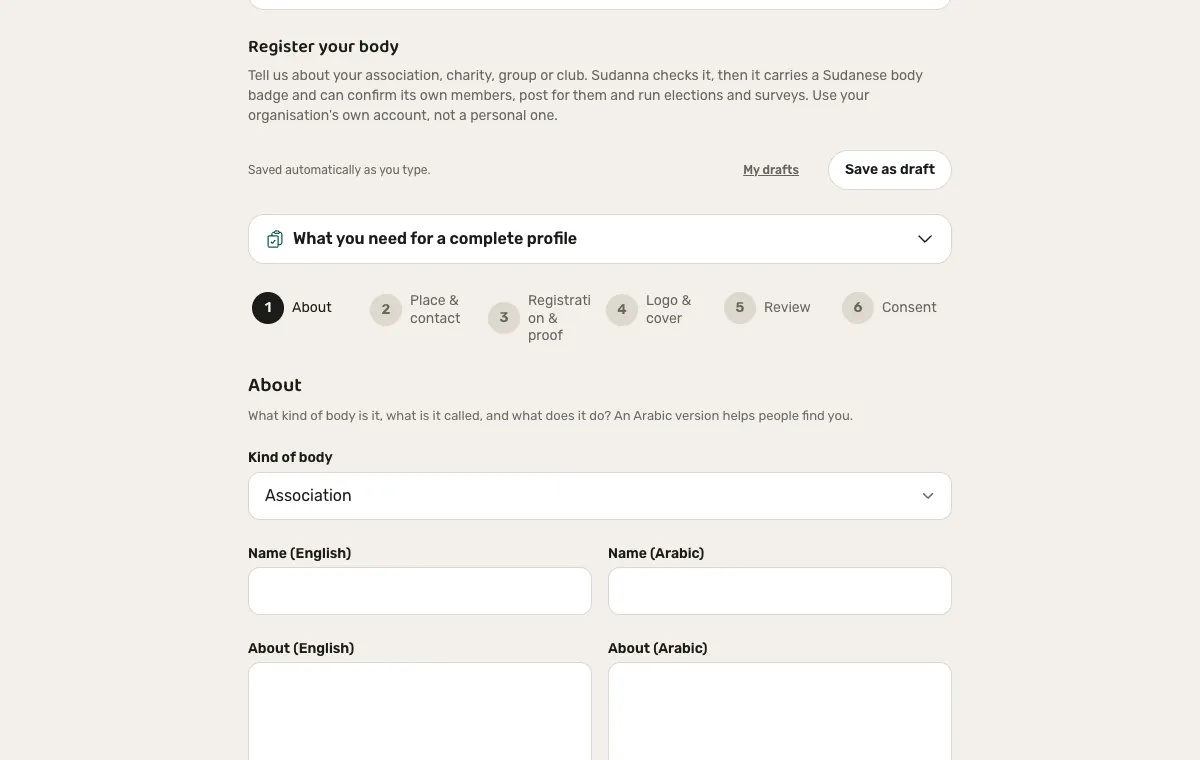
Your Sudanese body in your account → Register your body: About, Place & contact, Registration & proof, Logo & cover, Review and Consent. You can go back at any time, your answers are saved as a draft as you type, and a checklist shows what a complete profile still needs.
-
3
Read and accept the consent
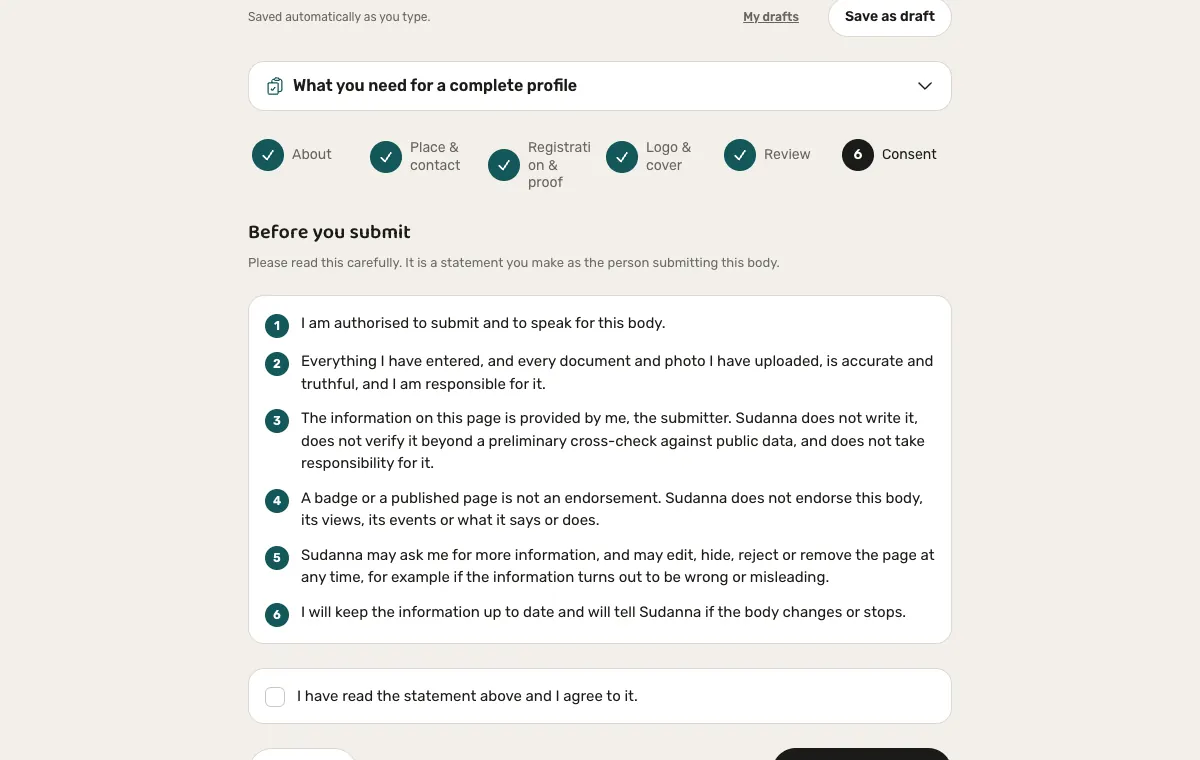
The last step is a statement you make as the person submitting the body: you are authorised to speak for it; everything you entered, and every document and photo, is accurate and truthful and you are responsible for it; Sudanna does not write or verify it beyond a preliminary cross-check against public data and takes no responsibility for it; a badge or a published page is not an endorsement; Sudanna may ask for more information and may edit, hide, reject or remove the page; and you will keep it up to date. Nothing is sent until you accept and press Submit.
-
4
Follow your application
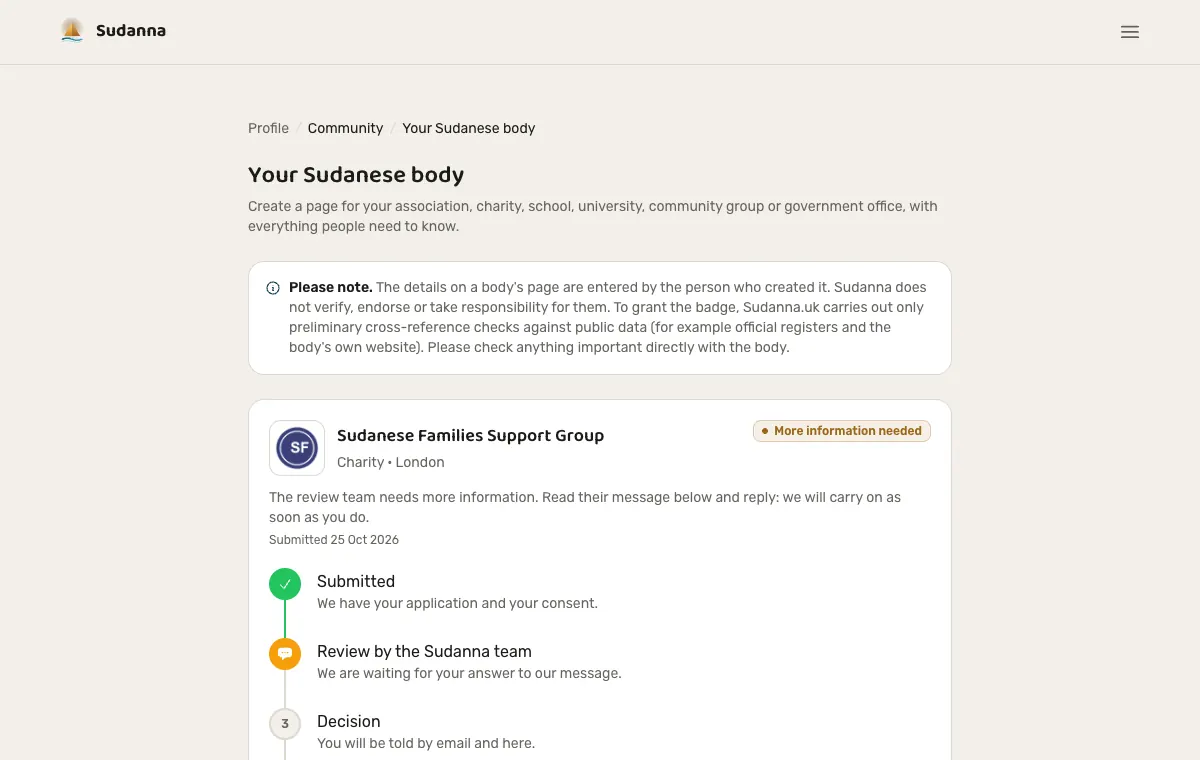
Straight after submitting you see a confirmation and a timeline — Submitted, Review by the Sudanna team, Decision, Your page is public — and an email. The same page is always under Your Sudanese body in your account.
-
5
Talk to the review team
If the team needs anything it writes to you in the conversation on that page and by email, and you reply there, with a document if it helps. While it waits for your answer the application shows "More information needed"; your reply puts it back in the queue. You can also change the application itself and send it again, including after a rejection.
-
6
Once you are recognised
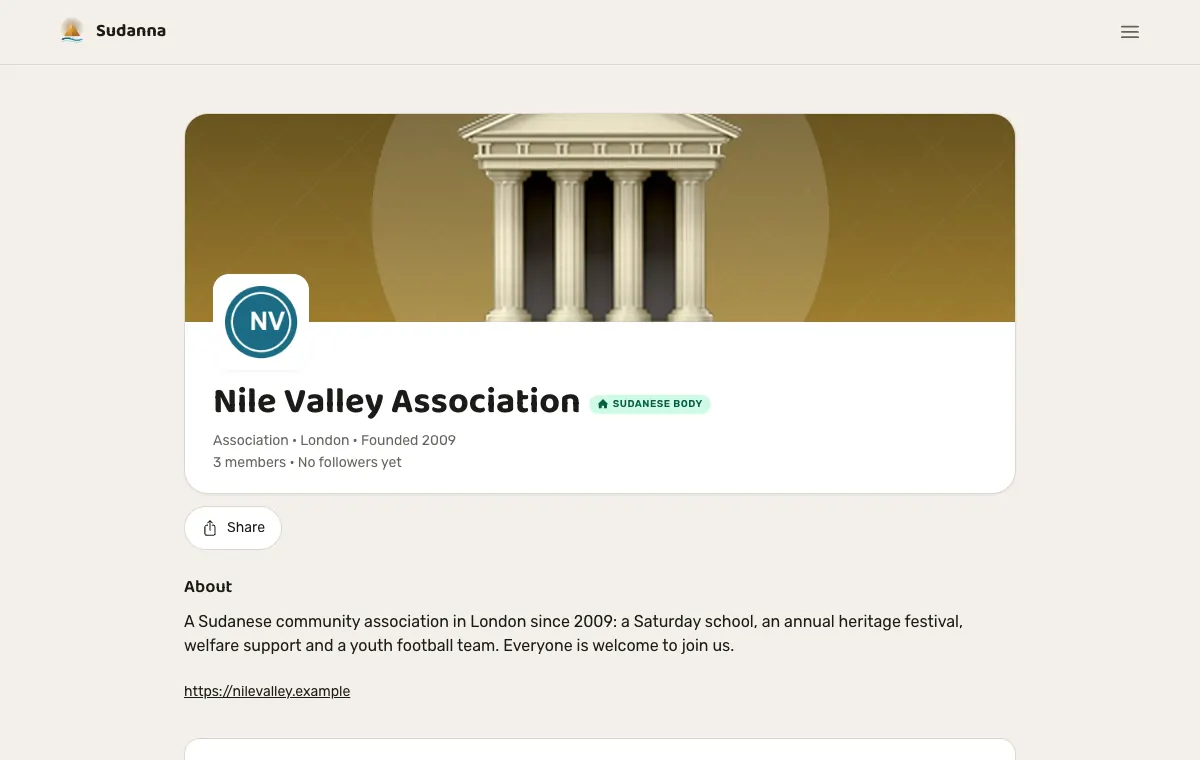
Your page appears in the directory with the Sudanese body badge. Everyone sees the public part (about, contact details, logo and cover, public announcements and public events); members see an extra members' area with member announcements, members-only events and their tasks. From your dashboard you approve or decline people who ask to join, invite people who already have a Sudanna account by their email, make people committee members and choose exactly what each may do (approve members, hand out tasks, post), give tasks to members, write announcements for members or for everyone, and edit your details, logo, cover and how people join.
-
7
Joining a body as a member
Open a body's page and choose Apply to become a member, with an optional note of up to 500 characters. The body approves or declines, you are emailed, and you can leave at any time. A body can also invite you, and you accept or decline. Being a member is different from following: the body confirms its own members.
A complete profile is easier to approve
Government offices and embassies can use their official website as the public record. Schools and universities can give their registration or URN number. A logo and a cover photo make your page recognisable.
Please note
The details on a body's page are entered by the person who created it. Sudanna does not verify, endorse or take responsibility for them: it only cross-checks public data before granting the badge. Check anything important directly with the body. Registering, and everything in the apps too, is free.
Chapter 9
Being part of the community
Beyond posting your own listings, Sudanna has several ways to genuinely take part.
-
1
Ask a question, or propose an initiative
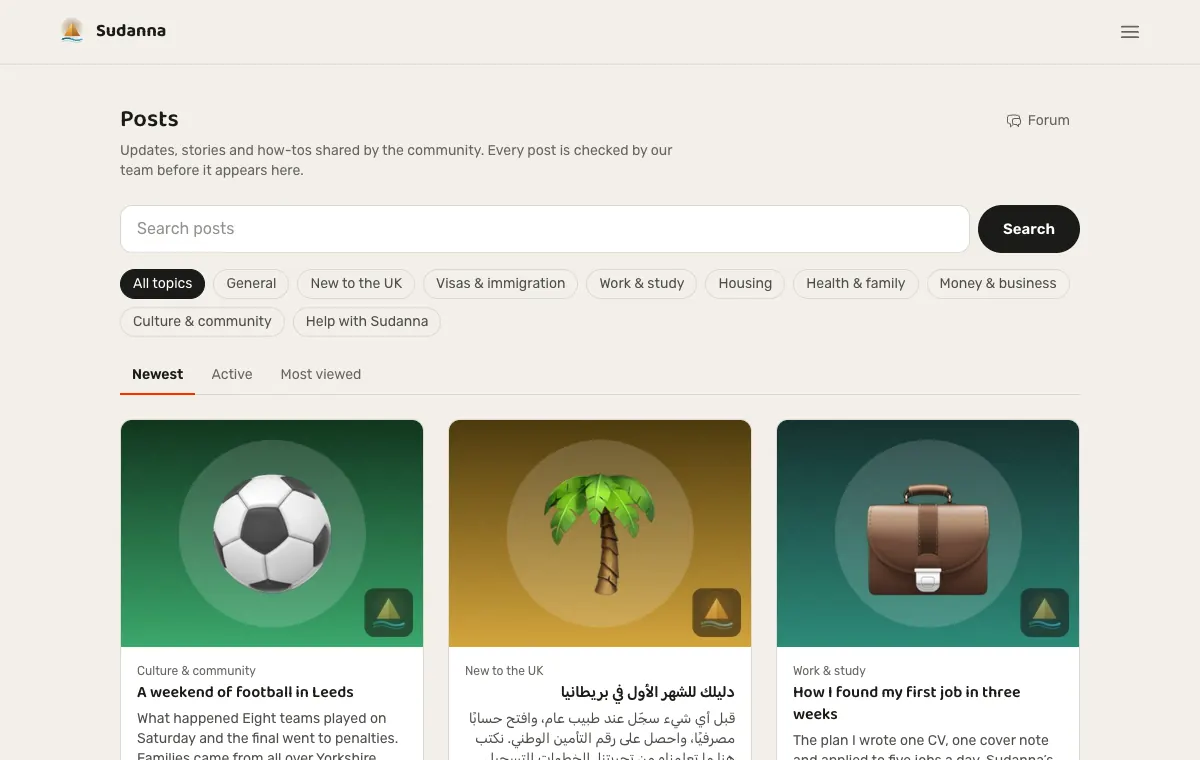
Forum → "Ask a question" works for exactly that; Forum → "Initiatives" is the same idea for proposals. Both go through a short review first, then anyone can answer, comment, or vote — the highest-voted rises to the top. Forum → "Posts" is for longer stories and how-tos, with a header photo.
-
2
Never lose what you are writing
Anything you start — a post, an event, a listing — is saved as a private draft as you type, on the website and in the apps. Pick it up from My drafts on any device, or delete it. It is removed when you send the item or delete your account.
-
3
Follow people you trust
Every seller, provider, employer, and organiser has a public profile page listing everything they've posted. Hit Follow, and you'll get an email the next time they post something new.
-
4
Leave a review
Rate 1 to 5 stars, with an optional comment, on any Market Place listing, service, or job posting you've applied to. Every review is checked by an admin before it's public, and an average rating only shows once someone's collected 5 or more.
-
5
Save a search, get an alert
In Market Place or Services Hub, save a category and/or keyword once and get an email whenever something new matches. Jobs has its own version, plus an employment-type filter.
-
6
Message anyone directly
"Message seller / provider / employer" on any listing starts a private conversation. Every conversation lives in one shared inbox, with Archive, Favourite, Block and Report one tap away.
-
7
See your own activity
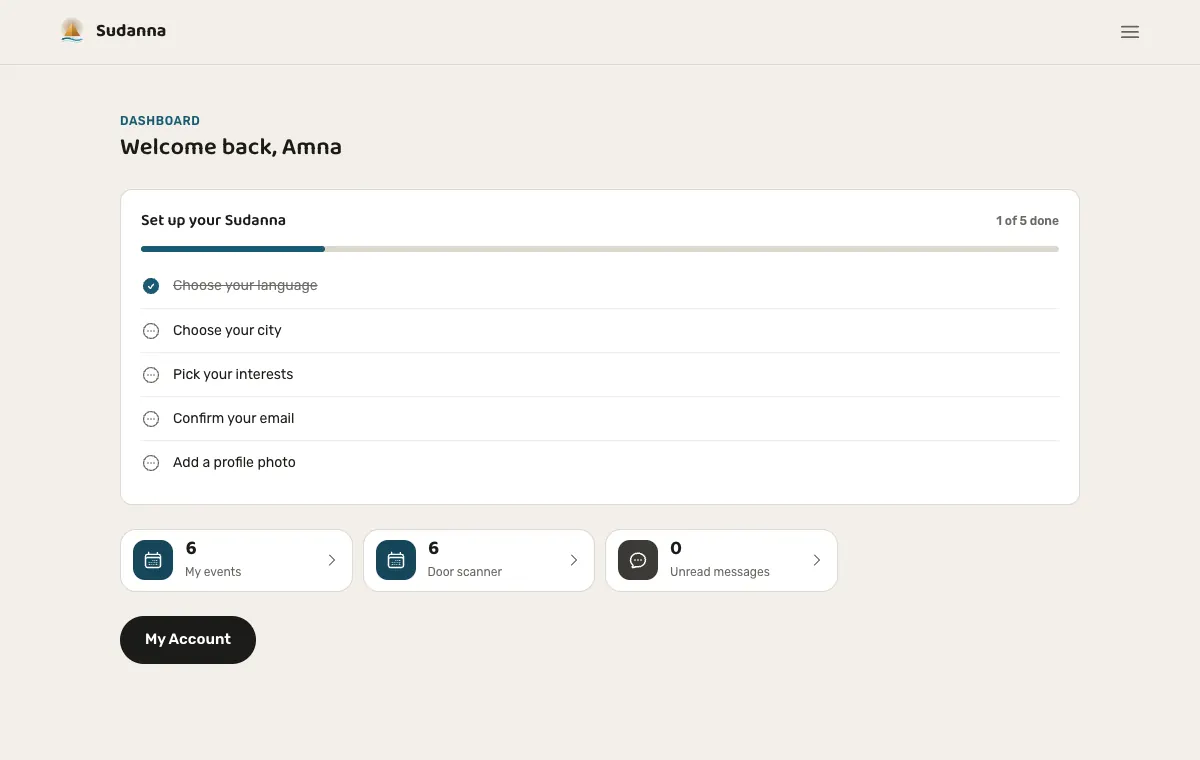
Your dashboard (and Profile in the apps) shows counters for your own things — events, listings, applications, tickets and unread messages — that count up as the page opens and each one takes you to that section.
Referral credit
Your account page has a personal invite link. The moment someone you invited makes their first paid purchase, you're credited £5 automatically — enough to cover many of the platform's own paid plans outright.
Chapter 10
Booking an event
Every event page tells you how you can book it, and what each way means.
For: Anyone going to an event.
-
1
Buy a ticket
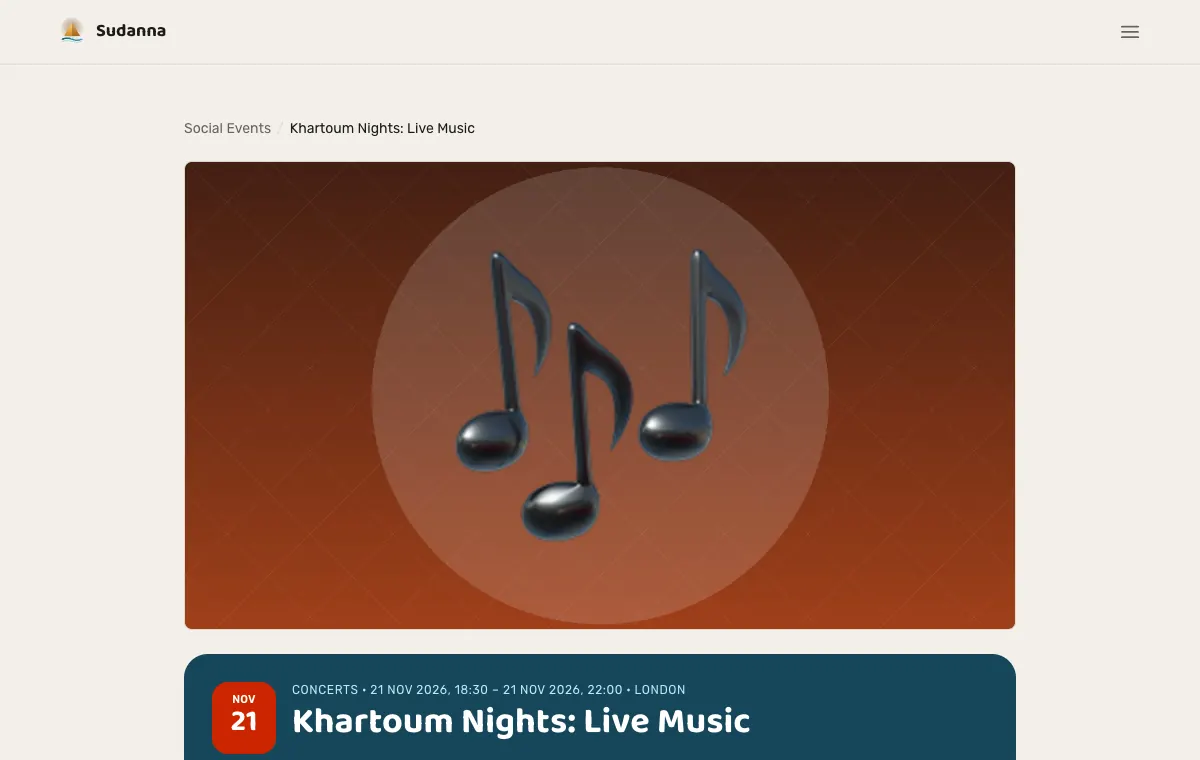
Choose your tickets, pay securely with Stripe (events marked "Free entry by sudanna.uk" cost nothing), and the QR codes arrive by email and sit under My tickets. A ticket guarantees your entry. The price you see is the price you pay: the organiser, not you, covers Sudanna's share.
-
2
Or reserve a place
Some events let you reserve a place and pay at the door (on the website, or tap Reserve on the event in the app). It costs nothing now and does not guarantee entry, so arrive early, and cancel from the email if your plans change.
-
3
If it is full, join the waiting list
Give your name, email and how many places you need. If a place opens up you get an email and two hours to take it. Look in your spam folder if you are expecting one.
-
4
Find them again
My tickets shows your tickets, reservations and waiting-list places. Lost the email? Use Find my ticket with the code.
Tip
A reservation is a promise to come, not a seat. If the venue is full when you arrive you may not be let in, so a ticket is the safer choice when you must get in.
Chapter 11
Sudanna on your phone
The Sudanna app for iPhone and Android is the same community in your pocket, in English and Arabic, with the same account.
-
1
Get the app
Search for "Sudanna" on the App Store or Google Play and sign in with your website account, or browse without one. Everything you start on one device is waiting on the other.
-
2
Do the same things as on the website
Browse every section, message people, save and share, buy and show tickets (with the QR code), apply for jobs, post listings, ask questions and write posts. Organisers create and manage events, reservations and the door scanner; people who run a Sudanese body register it, follow the application, answer the review team and run the body; captains run their club and pick line-ups.
-
3
Share and open links
Share any page from the app and the link shows the page's own photo, logo or cover when it is pasted into WhatsApp, Facebook, X or a message, in the language you use. Opening a Sudanna link on your phone takes you straight into the app.
-
4
Help is one tap away
On Profile, About and help opens this guide, About Sudanna, Contact and support and the legal pages. Account → Download my data gives you everything Sudanna holds about you.
Keep it up to date
New versions arrive through the App Store and Google Play. If something on the website is missing in your app, update the app first.
Chapter 12
Good to know
-
1
Every listing type, one review system
Market Place, Services Hub, Jobs, Events, and Sports clubs all share the same three states: Pending (submitted, awaiting an admin), Approved (live and visible), and Rejected (not published, with a reason shown to you). Editing anything always sends it back to Pending.
-
2
When you actually need a verified email
Only to publish something of your own: a listing, a job posting, an event, a sports club, or a forum post. Browsing, messaging, applying for jobs, and buying tickets never need it.
-
3
The blue verified badge
Granted by the Sudanna team, not something you switch on yourself — it shows next to a person's name wherever it appears once they have it.
-
4
Sharing a page
When you share a link, the preview shows the page's own cover, logo or profile photo, sized so WhatsApp and other apps show it, and Sudanna's own card when the page has none. Links shared from the Arabic app open the Arabic page.
-
5
Sudanese bodies and clubs are reviewed too
A Sudanese body is recognised by the team after a document check, and a sports club and each change to it are checked before they show, like every other listing in this guide.
That's Sudanna, today.
This guide describes exactly what's built into Sudanna right now. Sudanna keeps growing, so some details here may move on as new features ship.